Edit Admin User
Overview
For each system, an administrator user is designated, possessing administrative rights pertinent to that specific system. Typically, the individual who creates the system is automatically assigned as an administrator user. Furthermore, an administrator user has the capability to add additional administrator users for the respective system. At least one administrator user must always be present.
If you are not an administrator for the selected system, all settings appear in read-only mode, and you cannot make any modifications.
Step 1 - Start Edit Mode
- To enter edit mode, you have two options to start editing your system:
- Option 1: Select the Edit icon from the context menu on the System card.
- Option 2: Select the Edit option dropdown on the System Details screen.
Option 1
Option 2
- Select any option to enter edit mode.
- Once you are in edit mode, the following sections appear for editing:
- Admin Users
- Configuration
- Details
- Logo
- Published Trigger
- Subscriptions
- Each section appears on a separate band. Click the Admin Users band.
- Once you click the Admin Users band, a list of admin users appears.
- Each admin user appears on a separate band displaying their role and department.
Step 2 - Add Admin User
- You can add or remove admin users on this screen. Keep in mind, only admin users can add or delete users from the list.
- If you are not an admin for the selected system, the screen opens in read-only mode.
- Use the Add button to add a new admin user for the selected system.
- Refer to the "Add Admin User" article for detailed steps to add an admin user.
Remove Admin User
- Any admin user on the list can remove any other user from it.
- At least one user must remain on the list. The list cannot be empty.
Remove Single User
- When you hover over the band, the Delete icon appears.
- When you click the icon, a confirmation pop-up appears.
Remove Multiple Users
- Click Select in the action area. The Delete icon appears.
- Select the user bands you want to delete. The selected bands are highlighted.
- You can select multiple bands simultaneously.
- To remove the user, click the Delete icon in the action area. A confirmation pop-up appears.

At least one user must remain on the list. The list cannot be empty.
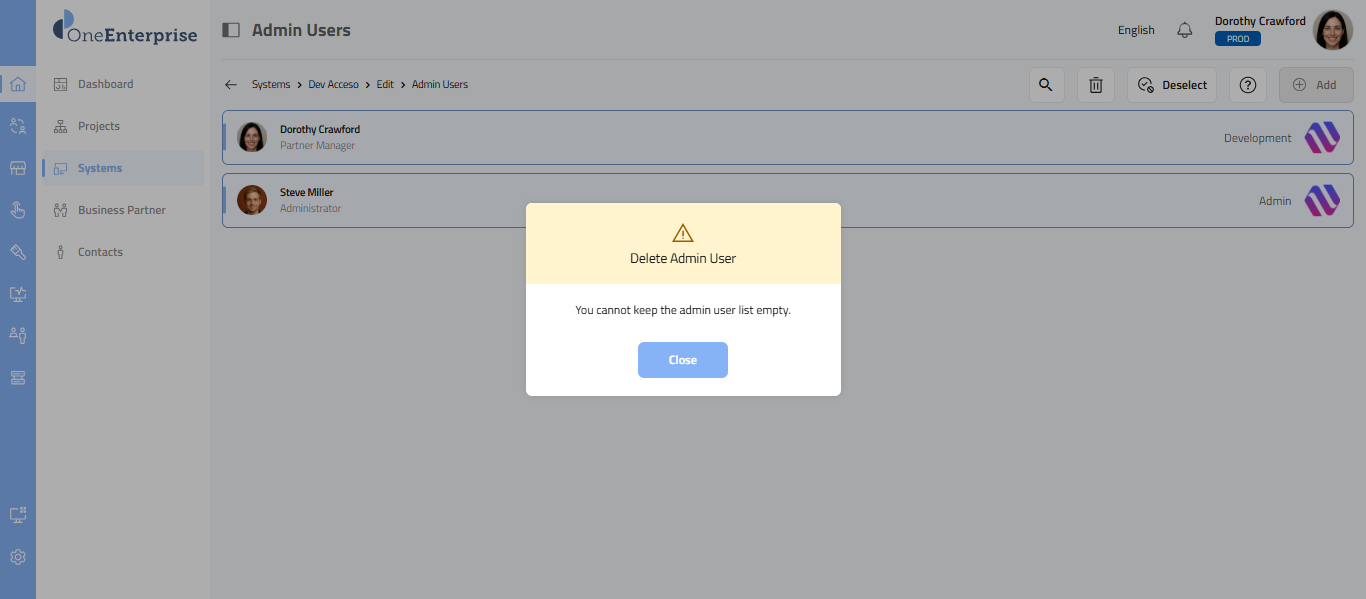
- When you click the Delete button for a band, a pop-up appears to confirm the deletion.
- The pop-up has two options: a Yes button and a No button.
- If you select Yes, the user is deleted.
- If you select No, the deletion is canceled.
Related Articles
Add Admin Users
Overview The system module lets you create an administrator profile for the chosen system. By default, the user who creates the system automatically receives administrator privileges for that system. As an administrator, you can designate one or more ...Edit Connector
Overview This article describes how to edit the settings of a system in the project network. You can access the Edit System band from both the Interaction View and the Dataflow View. Note: If you are not an administrator user for the selected system, ...View Laptop User
Overview Laptop users primarily operate in offline mode. Users currently engaged in cloud-based work can transition to using laptops and working offline as needed. To enable offline functionality on laptops, a specific configuration is required to ...User Defined Fields
Overview User-defined fields (UDFs) are custom fields you can create to store additional data not available in the standard schema of the integrated systems. These fields are useful when integrating systems or custom applications that require ...Edit System Details
Overview This article assumes you have already added your system. If you have not, create the system first. Follow the steps below to edit your existing system. If you are not an administrator for the selected system, all settings appear in read-only ...